How to Fix “Insufficient Gas Fee” Error (2026 Guide)
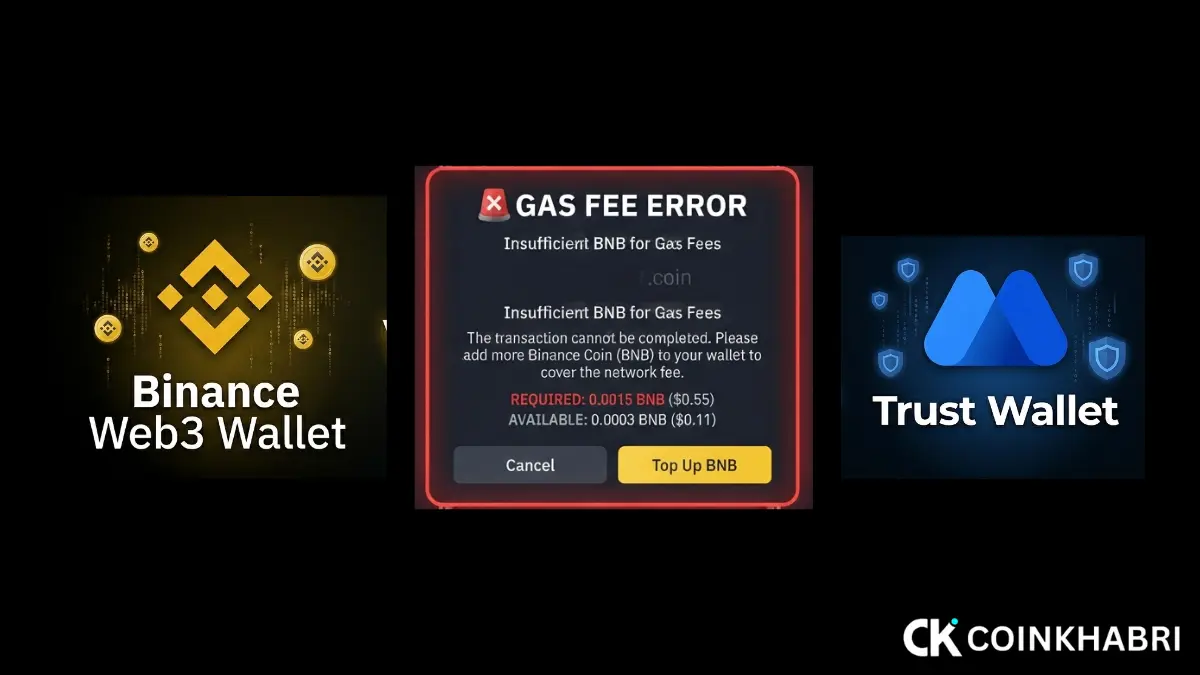
If you are seeing the “Insufficient Gas Fee” or “Insufficient Funds for Gas” error while doing a crypto transfer, swap, or smart contract interaction — whether you are using Trust Wallet or Binance Web3 Wallet — there is no need to worry.
This error is very common in 2026, which you can fix very easily, and this article explains how to Fix “Insufficient Gas Fee” error and why this error occurs.
In this article, we will explain step by step why this error happens, how to fix “Insufficient Gas Fee” error on every network (Ethereum, BNB Smart Chain, Polygon, Arbitrum, Solana), and what precautions you should take so that this error does not happen again in the future.
What Is the Insufficient Gas Fee Error?
Every blockchain transaction — whether it is a simple transfer or a token swap — requires paying a fee to network validators/miners to process it, which is called a “Gas Fee.” This fee is paid in the network’s native currency, not in the token you are sending.
For example:
- If you are sending a token on the Ethereum (ERC-20) network, the gas fee must be paid in ETH.
- If you are using the BNB Smart Chain (BEP-20), the gas fee must be paid in BNB.
- On the Polygon network, the gas fee is paid in MATIC/POL.
When your wallet does not have enough of that native coin to cover the current network fee requirement, Trust Wallet or Binance Web3 Wallet shows an error like “Insufficient Gas Fee”, “Insufficient Funds”, or “Transaction Underpriced” — even if you have the full amount of the token you want to send available.
This is a common misunderstanding among many people who think, “USDT is available in my wallet, so why am I getting this error?”, but the native coin of that specific blockchain on which you are sending the token is not available.
Why This Error Happens
It is very important to know why this error happens because until you know which error it is and why it is occurring, you cannot solve it. Below are the top reasons why this error occurs:
- Native Coin Balance Zero or Low — The most common reason. The wallet only has the token, but ETH/BNB/MATIC is not available for gas.
- Network Congestion — When traffic is high on the network, the gas price increases automatically. Because of this, the gas fee you set falls short.
- Selecting the Wrong Network — If you accidentally selected Ethereum when the token was on BSC (or vice versa), the token for the wrong gas fee is not correct, which can cause an error.
- Incorrect Slippage and Gas Limit Settings — Some advanced users manually lower the gas limit, which is insufficient for the transaction.
- RPC Node Delay — If the network’s RPC node is temporarily slow or out of sync, it shows a gas estimation error.
How to Fix “Insufficient Gas Fee” Error on Trust Wallet
Now coming to the main point on how to remove this insufficient gas fee error, the step-by-step method to clear this error is given below:
Step 1: Check the Native Gas Token
First of all, confirm whether the native coin of the network on which you are doing the transaction is available in your wallet or not:
- Ethereum → ETH
- BNB Smart Chain → BNB
- Polygon → POL (MATIC)
- Arbitrum/Optimism → ETH
If the balance is zero or low, deposit a small amount (for example, 0.002–0.005 ETH or 0.01–0.02 BNB) on that specific network from Binance Exchange or another wallet.
Step 2: Manually Adjust the Gas Fee
- Before confirming the transaction, tap on the “Network Fee” option.
- Select the “Market” or “Fast” option instead of “Slow” — this processes the transaction quickly and successfully.
- If the app shows a manual gas limit/price, keep it on default or increase it slightly.
Step 3: Update the App
Install the latest version of Trust Wallet from the Google Play Store or App Store — old versions have a gas bug.
Step 4: Clear Wallet Cache (Android)
Settings > Apps > Trust Wallet > Storage > Clear Cache. (This does not affect the wallet’s recovery phrase, only temporary data is cleared.)
Step 5: Try a Different RPC/Network
Sometimes a network’s RPC is slow. Switch the network in settings and retry, or try the transaction again after a short while.
How to Fix “Insufficient Gas Fee” Error on Binance Web3 Wallet
The structure of Binance Web3 Wallet is a little different because it is integrated inside the Binance app, but the method to fix it is similar to both.
Step 1: Confirm the Correct Network
Before a transaction in Binance Web3 Wallet, the network is shown at the top (BNB Chain, Ethereum, Polygon, etc.). Check once that the correct network is selected where your native gas coin is available.
Step 2: Transfer Gas Token From Binance
The easiest fix is to withdraw a small amount of BNB, ETH, or MATIC directly from your Binance Exchange account to your Binance Web3 Wallet address — on the exact same network where you want to do the transaction. This process completes in 2–3 minutes. And your gas fee arrives on that network.
Step 3: Use “Auto” Gas Fee Setting
Instead of entering a manual gas fee, select the “Auto” or recommended fee option — Binance Web3 Wallet recommends which and how much gas fee to give based on real-time network data.
Step 4: Keep a Small Buffer
Do not keep an amount equal to the exact fee only — keep a little extra buffer (10-15% more) because the gas price can fluctuate slightly until the transaction is submitted.
Network-Wise Gas Fee Differences (2026)
Below, for your ease, I have made a chart in which the gas fees of all networks are compared so that you can know which network is charging the lowest gas fees. See the chart below.
| Network | Gas Token | Average Fee Range |
| Ethereum Mainnet | ETH | Highest (depending on network congestion) |
| BNB Smart Chain | BNB | Very low (in cents) |
| Polygon | POL/MATIC | Almost negligible |
| Arbitrum/Optimism | ETH | Significantly lower than Ethereum |
| Solana | SOL | Very low, fast confirmation |
If you do daily transactions, then according to you, Polygon or BNB Smart Chain is the best option because they complete your transactions in minutes and ask for very low gas fees, almost nothing.
Common Mistakes People Make
Many people make such mistakes because of which either their transaction gets stuck or the transaction does not happen at all. Below we have told you that if you avoid these mistakes, you can transact peacefully without any trouble.
- Sending a transaction by only looking at the token balance, without checking the native gas coin.
- Depositing a gas token on the wrong network (for example: sending ETH from Ethereum to a BNB Chain address — this can also result in a loss of funds).
- Selecting the “Slow” gas fee option when the network is congested, due to which the transaction fails or gets stuck.
- Keeping the exact gas fee amount without any buffer.
Security Tips: Stay Safe from Gas Fee Scams
In 2026, a new scam trend is going on where fake support accounts tell users to “send this amount first to clear the gas fee.” This is 100% a scam. No legit wallet or exchange ever asks you for a separate payment in advance to “clear” the gas fee.
If someone sends you this type of message on Telegram or WhatsApp, block them immediately and be sure to read our guide: Crypto Phishing Scams & Fake Support Accounts – 6 Scam Signs.
Similarly, if you connect your Binance Web3 Wallet with airdrop bots or DeFi platforms, unnecessary token approvals can create security risks along with gas fee errors — for this, see this guide: How to Revoke Token Approvals in MetaMask and Trust Wallet.
Conclusion
The “Insufficient Gas Fee” error is not a permanent or complicated problem — it is just important to understand that a native gas coin must be available for every transaction, the correct network should be selected, and the fee estimate should be according to current network conditions. Whether it is Trust Wallet or Binance Web3 Wallet, by following the steps given above, you can fix this error easily and permanently.
And if you want to choose the best one between both wallets, read this comparison guide. Binance Web3 Wallet vs Trust Wallet – Which is better?.